
Skip to main content
HP Universal Card Reader X3D03A – Mifare 13.5mhz (RDR-785X Equiv) on HP devices
HP Universal Card Reader X3D03A – Mifare 13.5mhz (RDR-785X Equiv) on HP devices
Our example card did not have any number printed on it. So we will only use the data decoded by the HP Utility to specify our settings in Resource Manager.
HP Card Reader Configuration Utility
Firstly, we must configure the reader to read the specific card type. This reader can read up to 4 different card types at the same time (both 13.5mhz and 125khz).
- Plug the card reader into the USB port of a Windows PC and start the HP Card Reader Configuration Utility.
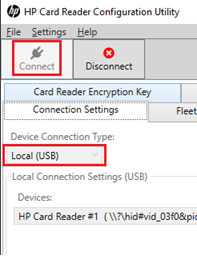
- On the Connection Settings tab, change the Device Connection Type to Local (USB).
- Click Connect. It might fail to connect on first try. If so, try again.
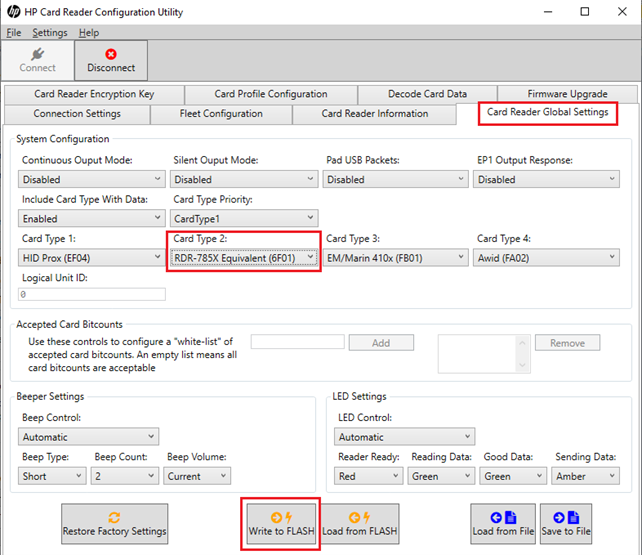
- Click the Card Reader Global Settings
- Ensure one of the selected card types is RDR-785X Equivalent (6F01).
- Click Write to FLASH.
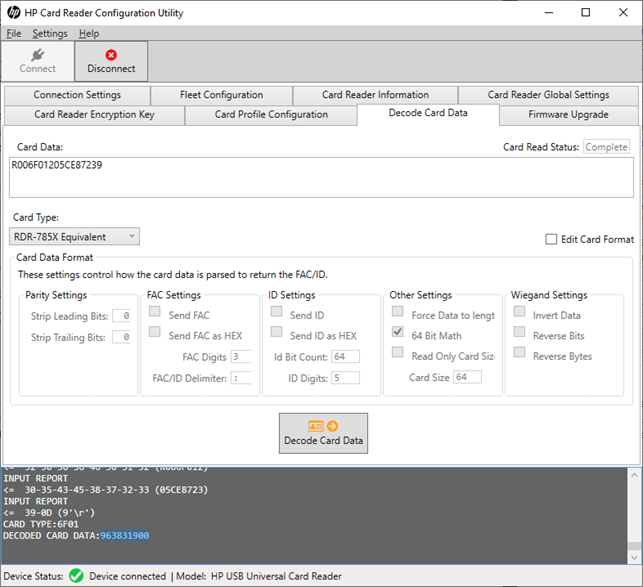
- Now test that the reader is working by clicking the Decode Card Data tab and scanning the card. If it doesn’t scan, perhaps the card type is incorrect. Try setting a different Card Type and then Write to FLASH and try again.
- Our example card resulted in Card Data of R006F01205CE87239 and decoded card data of 963831900.
Card settings – Resource Manager
Now plug the card reader into the HP device.
- Open Resource Manager and navigate to Device Management > Shared Devices.
- Double click the HP device.
- On the Controller tab, ensure the Controller Type is set to HP Integrated.
- On the Authentication tab, in the Authentication type frame, ensure the Identification method drop-down is set to either Card swipe or keypad login or Card swipe only.
- Click the Auth Device tab.
- In the USB device registration frame, click the Choose known VID/PID button.
- Choose HP Universal Card Reader X3D03A and click OK.
- In the Card reader settings frame:
- Choose whether self-registration of cards will be allowed and the authentication requirements for self-registration.
- In the Byte conversion method drop down, choose Bytes are ascii codes for Hex characters.
- In the Data ordering drop-down, choose Reverse bytes.
- Now the Start bit and Bit length must be set based on the number you would like to extract from the binary string. For example, to get the number 963831900 that the HP Configuration Utility decodes, we would choose Start bit: 0 and Bit length: 32.
| Document revision date: 2020/06/01 Software version: 2.2.64.0 |
HP Universal Card Reader X3D03A – Mifare 13.5mhz (RDR-785X Equiv) on HP devices